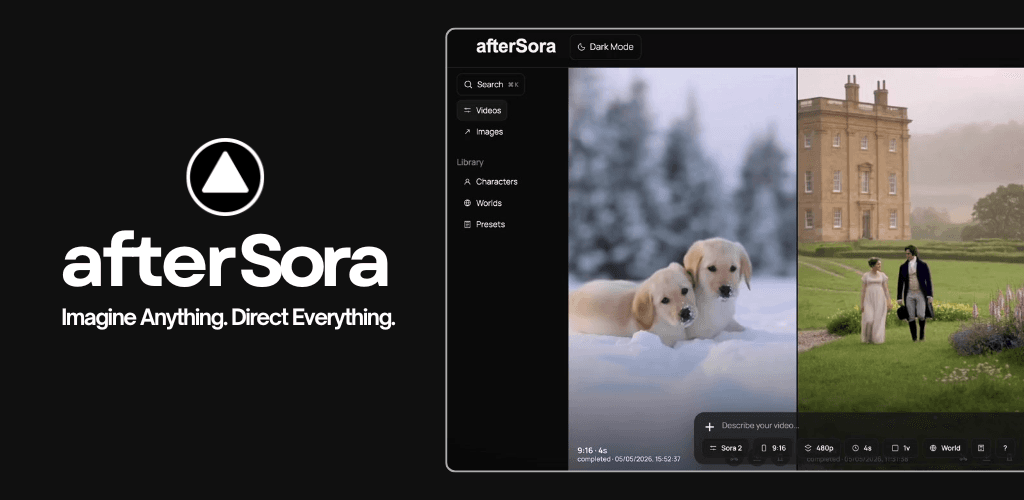
afterSora is a creative production workspace
afterSora is an independent AI video and image platform. It combines model access with the production context that sits around a generation: projects, prompts, reference assets, characters, worlds, storyboards, saved outputs and revision tools.
It is not part of OpenAI, and it is not task-management or CRM software. Its job is to help a creator move from an idea to organised media without rebuilding the whole workflow each time the underlying model changes.
1. Choose Video or Image
The dashboard begins with the output type. Video and Image expose different model, quality, duration and reference controls. The available settings change with the selected model so the interface does not imply that every provider accepts the same inputs.
- Video: Sora 2, MiniMax H3, FLUX 3, Wan 3.0 and the Seedance family.
- Image: afterSora Imagine with Standard HD or 2K Precision, and GPT Image 2.
- Retired Veo, Kling and Seedance aliases cannot create new jobs.
2. Set the generation controls
Choose the aspect ratio, duration, resolution or image quality, variation count and model-specific references offered for the active route. Sora 2 currently use four-, eight- or twelve-second video controls in 16:9 or 9:16. Sora 2 is 720p.
Rift's live controls are five, ten or fifteen seconds at 768P or 2K in 16:9, 9:16 or 1:1. Reference and audio options appear only where the current Rift worker supports them, so use the controls shown for the selected generation path.
3. Organise work with projects
Projects group generated items under a short, recognisable name. Create a project for a campaign, client deliverable, character test or film sequence, then associate relevant outputs with it. The project view helps separate purposeful production work from the wider generation feed.
4. Carry creative context forward
These controls do not guarantee identical output. They give the prompt compiler and supported provider reference paths stronger, repeatable context.
- Characters store reusable identity and reference information. Availability depends on model rules and likeness checks.
- Worlds store environment, visual style, tone, world rules, banned elements and an optional focal image.
- Generation defaults can remember preferred video and image settings for the next session.
5. Build multi-shot ideas with Storyboard
Storyboard turns one prompt into timed scene cards. Each card can hold shot direction and, where allowed, an image reference. The dashboard compiles the sequence into the selected model's generation request. Card count, reference limits and native behavior vary by model.
6. Generate and track the job
Before submission, afterSora calculates the credit charge from model, duration, resolution or image quality, variations and optional tools. Credits are reserved while the job runs. The library tracks queued, in-progress, completed and failed outputs, and successful media can be viewed, downloaded, favorited, shared or assigned to a project where the relevant control is available.
7. Iterate from a result
The viewer exposes creative operations including Remix, Extend, Re-cut, Loop and image adjustments. Support is model- and source-dependent. Some operations call a provider-native route; others use prompts, frames, references or local processing to produce the closest supported workflow.
Treat every operation that creates a new generation as a new job with its own credit estimate. Preserve the approved source before starting a destructive-looking experiment.
8. What happens when a job fails
The platform reserves credits when a job is created and returns them when the job fails without delivering an output. The credit ledger keeps purchase, reservation and refund events separate so the balance can be audited. If a failed job does not show its return, contact support before repeatedly submitting the same request.
The shortest useful workflow
- Create a project.
- Choose Video or Image and a live model.
- Set output controls and add only necessary references.
- Write one clear prompt or storyboard.
- Check the credit estimate and submit one variation.
- Review the result, then iterate or scale variations.
- Download and keep the approved output with its project context.